UI and Unit automated tests are great when they pass and everything is green, the problem appears when some tests fail and we need to know why. Some tests may fail once per 100 runs, especially UI integration tests and simply running them again may not give us any answers, those flaky tests are the reasons why sometimes we put a blind eye to them just because it is too much of a hassle.
1. Logging messages in the application code
2. Setting up UI/Unit tests observers
3. Categorize logs based on current Unit test
4. Categorize logs based on current UI test
5. Collecting logs after tests with Simulator
6. Collecting logs after tests with physical device
7. Getting logs from CI to Jenkins
8. Browsing through logs
Logging messages in the application code
For logging, we are gonna use Logger from os module which is an Apple unified logging system.
First, we need to import os module and create and Logger structure. The initializer takes two parameters, subsystem, and category which are useful for filtering log messages.
In this article, we will only use category but maybe you would like to set subsystem as Test Suite’s name and Test Case’s name as the category, it is up to you.
					import os
internal var logger = Logger(subsystem: "com.company.sampleApplication", category: "category")
The logger must be globally accessible and declared as a variable, in order to be able to change its category accordingly to current test, we will get back to it later.
					// Log error message example:
logger.error("Error occurred!")
you can read more about Logger here:
https://developer.apple.com/documentation/os/logger
The logger has typical log levels debug, info, notice, error, and fault.
With default logging system configuration low priority levels (debug and info) aren’t stored in phone’s persistent memory, they are available only during app’s live cycle, so the best way is to only use notice, error, and failure for important messages.
You can use logger alongside other logging engines, I personally like to use SwiftyBeaver as the main application logging system as it has some useful built-in features and a simple way to add new logging methods:
					class OsLoggerDestination: BaseDestination {
    override open func send(_ level: SwiftyBeaver.Level, msg: String, thread: String, file: String, function: String, line: Int, context: Any? = nil) -> String? {

        let formattedString = super.send(level, msg: msg, thread: thread, file: file, function: function, line: line, context: context) ?? ""

        switch level {
        case .debug, .info, .verbose:
            logger.notice("\(formattedString, privacy: .public)")

        case .warning:
            logger.error("\(formattedString, privacy: .public)")

        case .error:
            logger.fault("\(formattedString, privacy: .public)")
        }

        return formattedString
    }
}

SwiftyBeaver.addDestination(OsLoggerDestination())
Setting up UI/Unit tests observers
XCTest module contains a delegate protocol named XCTestObservation which is called during a test execution cycle, e.g before each test starts or after its failure.
In order for it to work we need to create two classes that implement this protocol, UnitTestDelegate, and UITestDelegate:
					import XCTest

class ____TestDelegate: NSObject, XCTestObservation {

    func testBundleDidFinish(_ testBundle: Bundle) {
        XCTestObservationCenter.shared.removeTestObserver(self)
    }

    override init() {
        super.init()
        XCTestObservationCenter.shared.addTestObserver(self)
    }

    func testCaseWillStart(_ testCase: XCTestCase) {
        // Called before each test
    }
}
and set them as the Principal class of each test targets info.plist:


Categorize logs based on current Unit test
Our goal here is to set the test case name as a logger category. With @testable import inside Unit Test Target we can access application internal variables, in this case from testCaseWillStart function inside UnitTestDelegate we can set up our application logger accordingly:
					@testable import SampleApplication
import os

func testCaseWillStart(_ testCase: XCTestCase) {
    logger = Logger(subsystem: "com.sample.sampleApplication", category: testCase.name)
}
Categorize logs based on current UI test
UI Test target doesn’t have access to any of the application properties so we need to send the test case name from the test to an application. We can use launchEnvironments by setting their test name under some key then accessing it inside the application code in didFinishLaunchingWithOptions and setup our logger category:
inside testCaseWillStart function of UITestDelegate class:
					    func testCaseWillStart(_ testCase: XCTestCase) {
        app.launchEnvironment["TEST_NAME"] = testCase.name
    }
and then in the application’s AppDelegate:
					    func application(_ application: UIApplication, didFinishLaunchingWithOptions launchOptions: [UIApplication.LaunchOptionsKey: Any]?) -> Bool {

        if let testName = ProcessInfo.processInfo.environment["TEST_NAME"] {
            logger = Logger(subsystem: "com.company.sampleApplication", category: testName)
        }

        return true
    }
Collecting logs after tests with Simulator
It is pretty easy with simulator because in Fastlane we need to set just two parameters in the scan suite run_tests function:
output_directory – The directory in which all reports will be stored
include_simulator_logs – whether the logs generated by the app in the Simulator should be written to the output_directory
Collecting logs after tests with physical device
In order to retrieve logs from a physical device we will use the log tool as recommended by Apple here:
https://developer.apple.com/documentation/os/logging/viewing_log_messages
One downside of this approach is this command requires sudo privileges, which may be problematic on CI environments but not impossible e.g. by responsibly editing sudoers file.
first, in Fastfile we need to save test start time:
start_time = "@#{Time.now.to_i}"
and then collect logs after tests execution:
sh "sudo log collect --device-udid 'xxxxxxxx' --start #{start_time} --output ./mylogs.logarchive"
Getting logs from CI to Jenkins
zip logarchive by:
sh "zip -r mylogs.zip mylogs.logarchive/"
and add a step in the Jenkinsfile pipeline:
archiveArtifacts(artifacts: 'test_output/mylogs.zip')
Browsing through logs
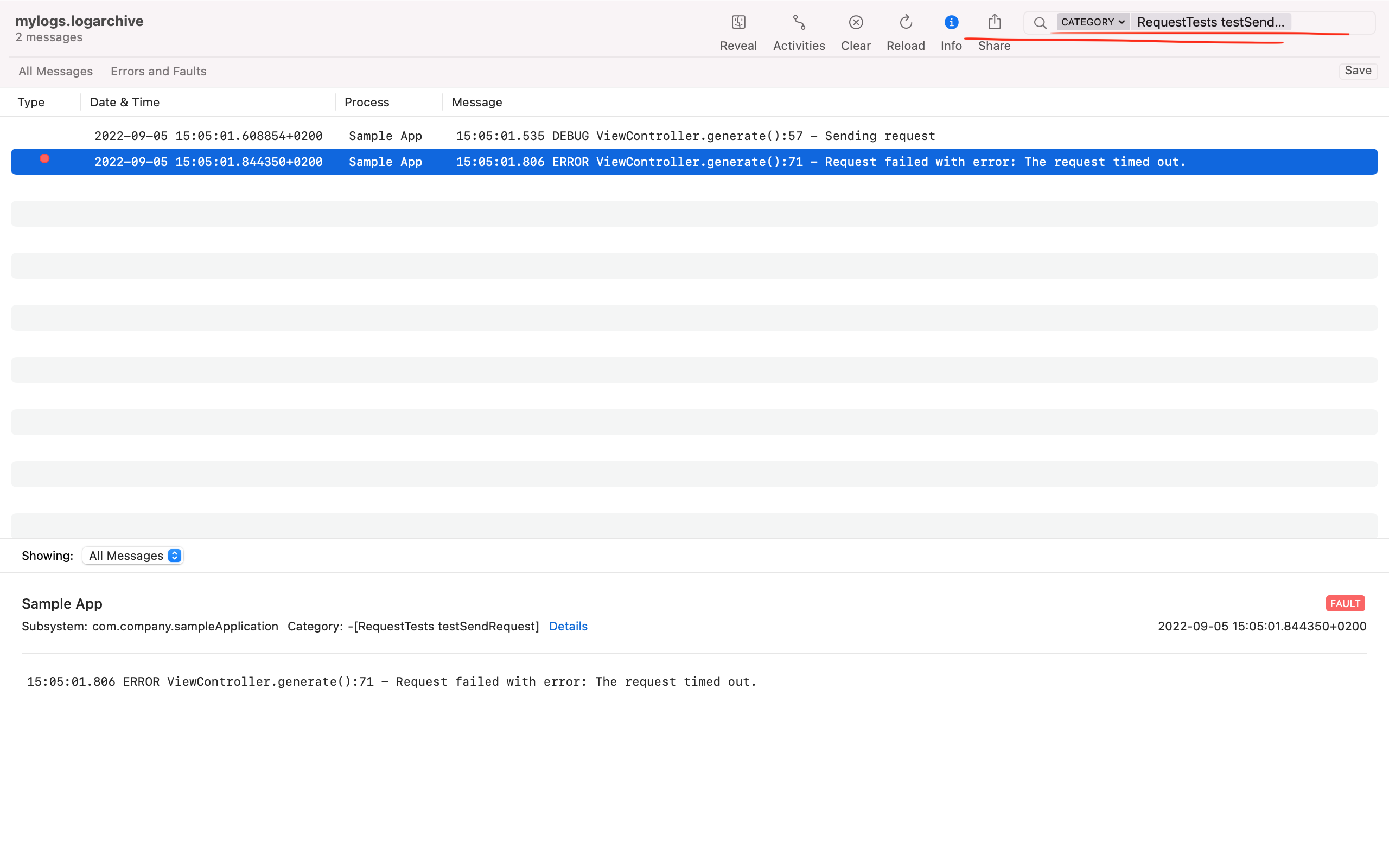
Now we can open logs using the Console app which is preinstalled on every MacBook and filter our logs by category by typing the test suite name and test case name separated by space, e.g. „RequestTests testSendRequest„ in the upper right corner and see all logs from that test: